Instances overview
An instance is one running deployment of a technology — a PostgreSQL cluster, a MongoDB replica set, a Valkey cache. Whatever the technology, you find, inspect and manage instances in the same place.
The Instances page
Instances in the left menu lists every instance you have access to, across all namespaces. For each instance you see its Status, Name, Provider and Namespace, and an Actions menu.
- Use the search, filter and column icons above the table to narrow the list.
- Create opens a panel where you pick the provider for a new instance. See Create an instance.
- Import database creates an instance from a backup that already exists in a backup storage. See Create an instance from a backup.
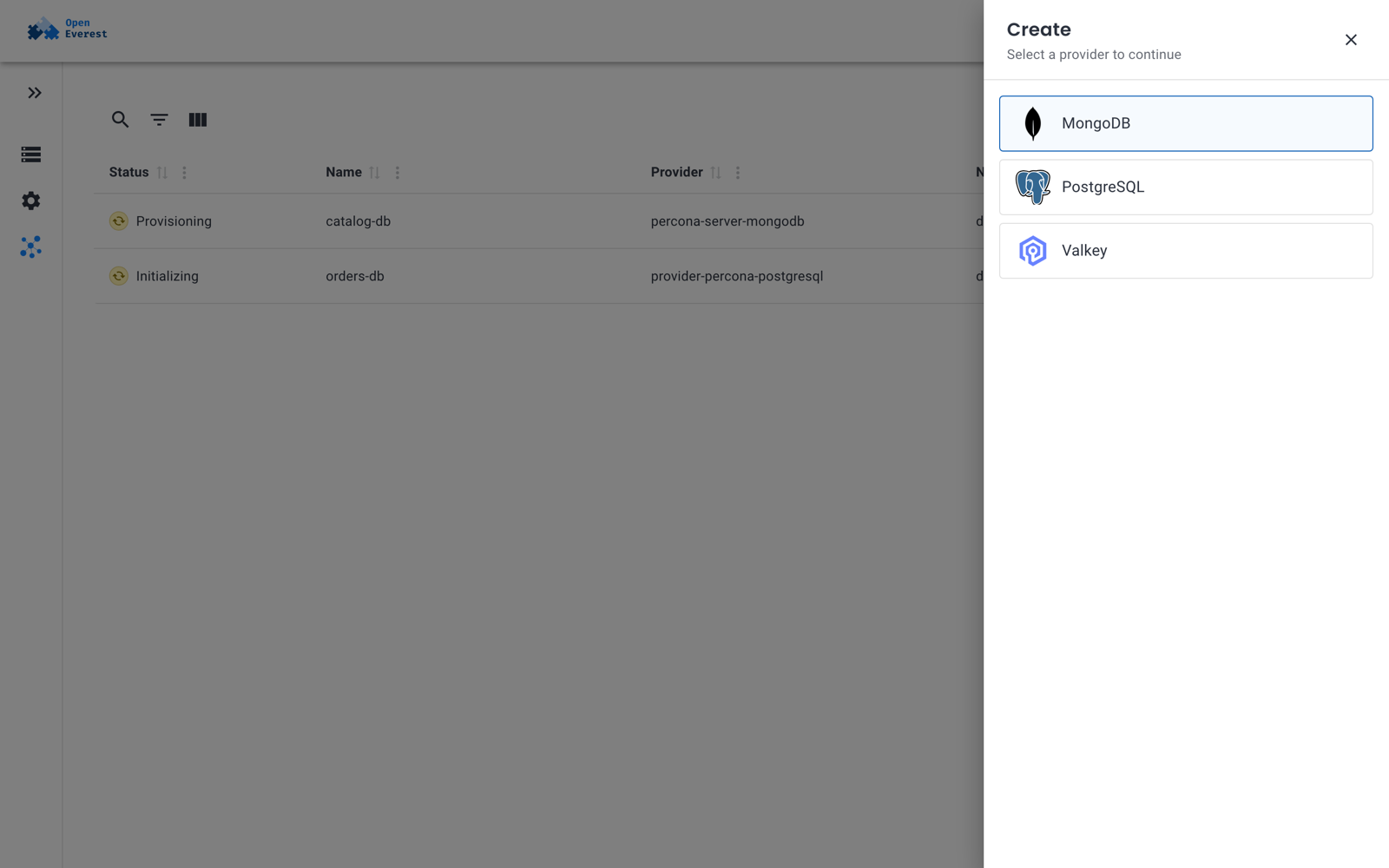
When no instance exists yet, the page shows the installed providers instead, so you can start right away.
Instance status
The status column shows the phase of the instance:
| Status | Meaning |
|---|---|
| Pending | The instance was accepted but the provider has not started creating it. |
| Provisioning | The provider is creating the Kubernetes resources. |
| Initializing | The resources exist and the engine is starting for the first time. |
| Ready | The instance is healthy and accepts connections. |
| Updating | A change, such as scaling or a configuration change, is being rolled out. |
| Restoring | Data is being restored from a backup. |
| Terminating | The instance is being deleted. |
| Failed | The instance needs attention, for example because its pods keep crashing. |
If some pods can't be scheduled or are not ready, the instance shows a warning with the reason, for example "engine: 1 of 3 pods cannot be scheduled: 0/2 nodes are available: 2 node(s) didn't match pod anti-affinity rules." See Diagnostics.
Instance details
Click an instance to open its details. The page has these tabs:
- Overview — basic information, connection details, and cards with the instance's configuration, grouped as the provider defines them (for example Resources, Proxy or Advanced configuration). Cards that can be changed have an Edit button. See Change and delete instances.
- Backups — the instance's backups and backup schedules, and point-in-time recovery. See Create backups.
- Restores — the history and status of restores into this instance. See Restore a backup.
Generic plugins can add their own tabs and overview cards, for example to browse data or show metrics.
Instances in Kubernetes
Every instance is an Instance custom resource. You can see the same information with kubectl:
kubectl get instances -A
NAMESPACE   NAME            PROVIDER                      VERSION   PHASE          READY   REASON         AGE
demo        catalog-db      percona-server-mongodb        8.0.32    Provisioning   False   Provisioning   14s
demo        orders-db       provider-percona-postgresql   18.4-1    Initializing   False   Initializing   83s
demo        session-cache   valkey                        9.1       Provisioning                          3s
For the full status, including the conditions and the number of ready pods per component:
kubectl get instance orders-db -n demo -o yaml
See Instance.