Single sign-on (OIDC)
Identity Provider (IdP) integration connects applications and services with an external identity provider for your organization. This enables centralized authentication and authorization management, improving security and simplifying user access. By leveraging IdP integration, you can ensure that users are securely authenticated and authorized to access various applications and services across your organization.
OpenEverest uses OpenID Connect (OIDC) Protocol to integrate with external Identity Providers (IdP).
To integrate an IdP with OpenEverest, configure OIDC on the IdP's side, then configure OpenEverest.
Configure OIDC on the provider side
-
Proof Key for Code Exchange (PKCE): When setting up the Provider side, it's important to configure an application specifically for PKCE authorization.
-
Redirect URIs:
-
Sign-in redirect URIs should point to
<EVEREST_URL>/login-callback. -
Sign-out redirect URIs should point to
<EVEREST_URL>.ImportantIdP providers often require a secure connection (HTTPS). Therefore, the provider might require your
<EVEREST_URL>to be based on HTTPS. If your provider requires this, consider adding a reverse proxy in front of OpenEverest to provide such functionality.
-
Example: OIDC configuration on the provider side
Below is an example of the configuration for the IdP provider Okta.
Other popular IdPs include Microsoft Azure Active Directory, Auth0, Google Identity Platform, etc.
OKTA
-
Sign in to your Okta organization as a user with administrative privileges.
-
In the Admin Console, go to Applications → Applications and click Create App Integration.
-
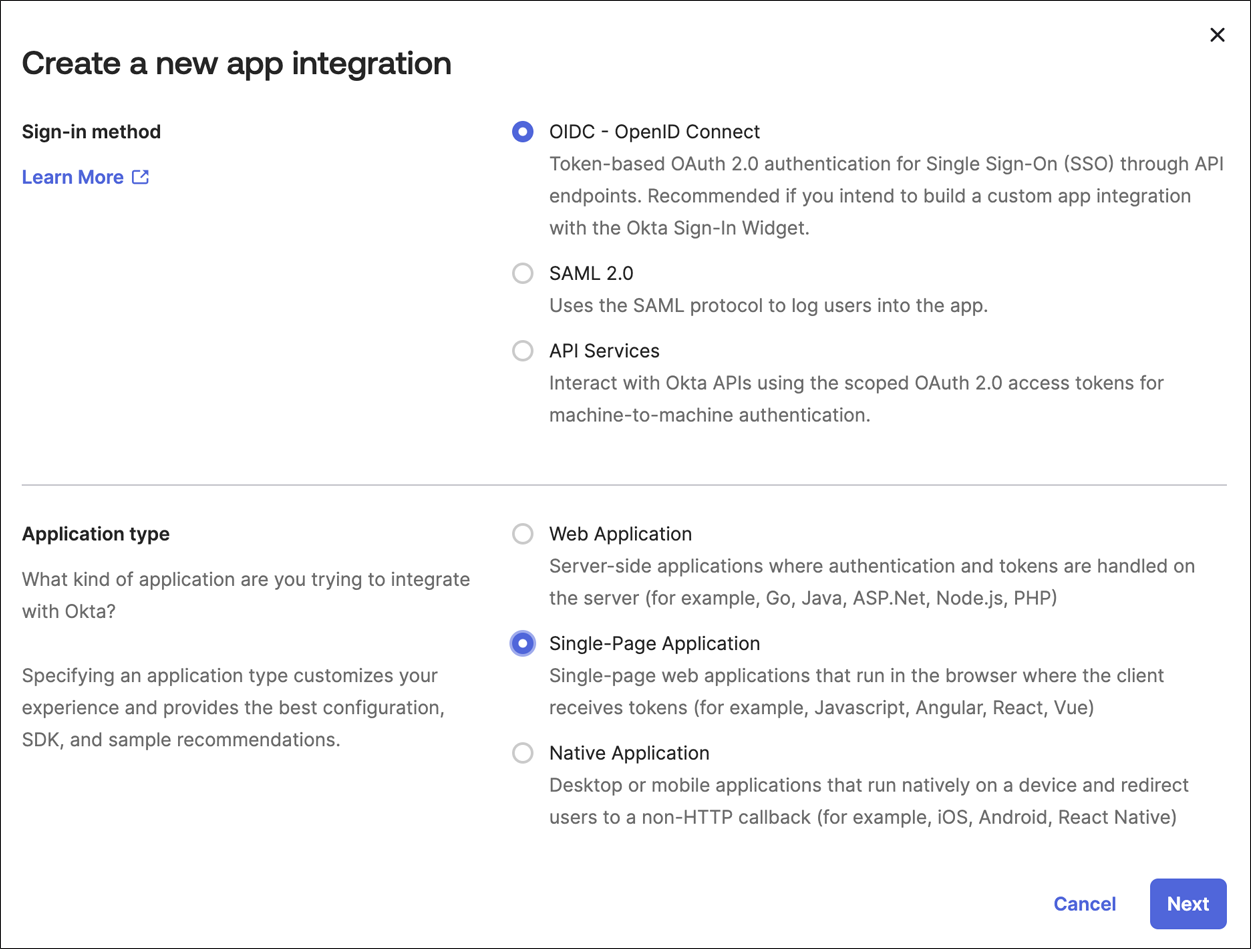
On the Create a new app integration page, set the following:
- Sign-in method - OIDC - OpenID Connect
- Application type - Single-Page Application, and click Next.
-
Set the following fields:
a. App integration name - any value
b. Sign-in redirect URIs -
<EVEREST_URL>/login-callbackc. Sign-out redirect URIs -
<EVEREST_URL>NoteOkta allows the use of HTTP for development purposes and in cases where the Admin explicitly permits it.
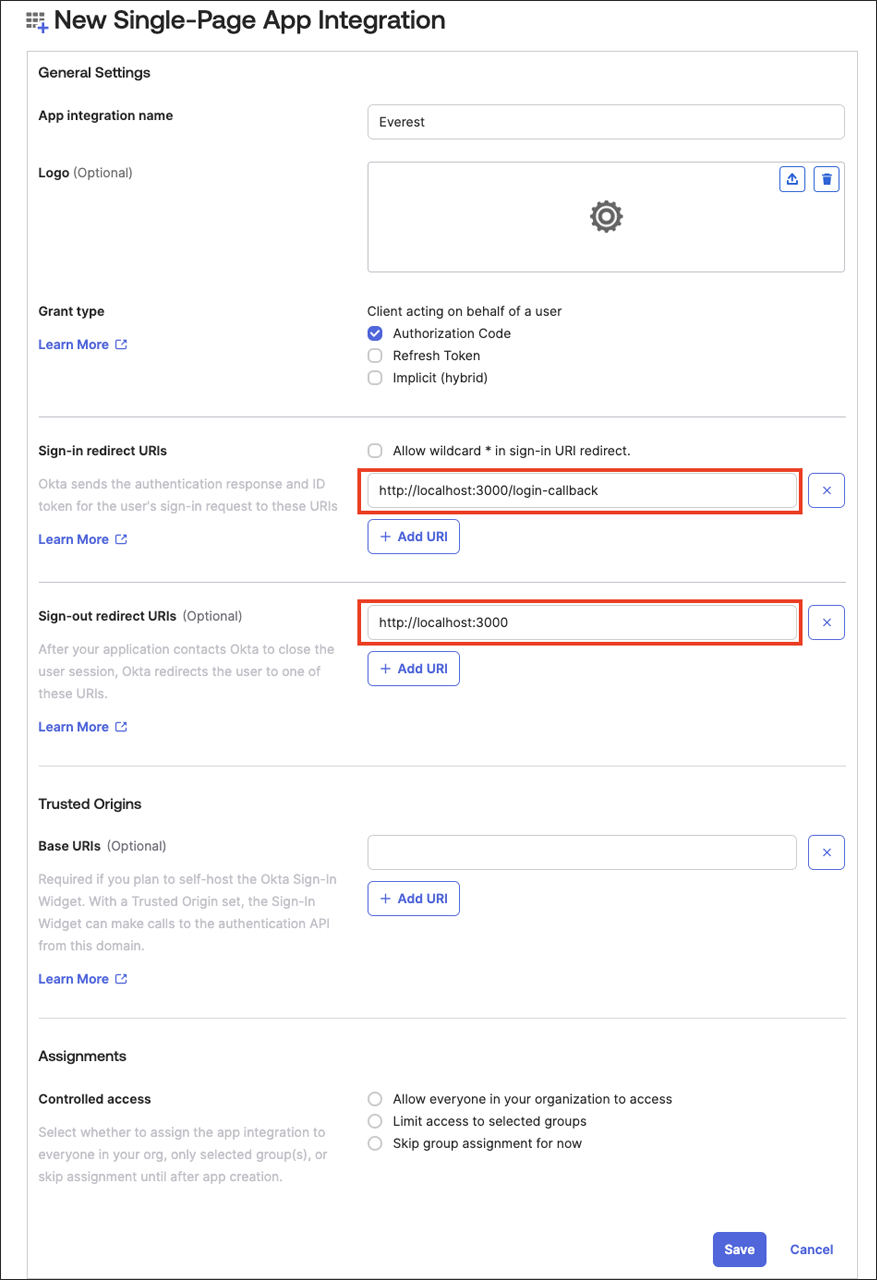
d. Click Save.
e. Copy the
clientIDof the created app.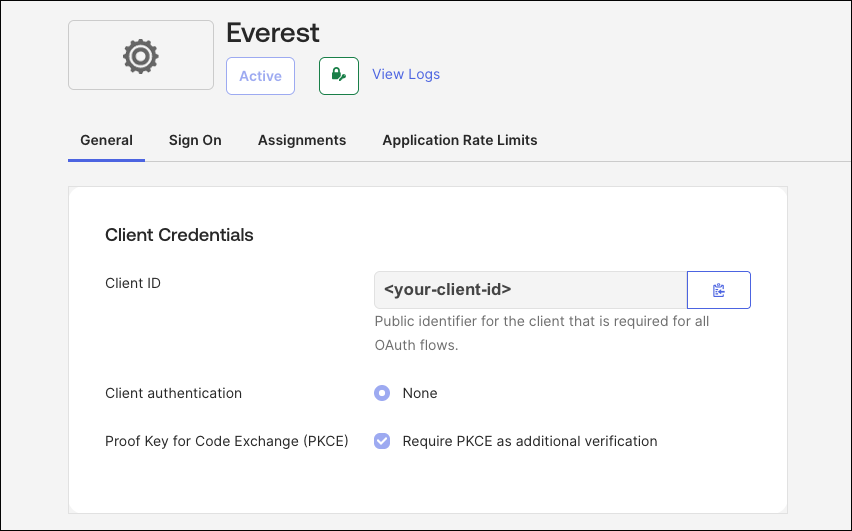
f. Navigate to Security → API → Authorization Servers and copy the
issuerURLyou’d like to use for the Everest authorization.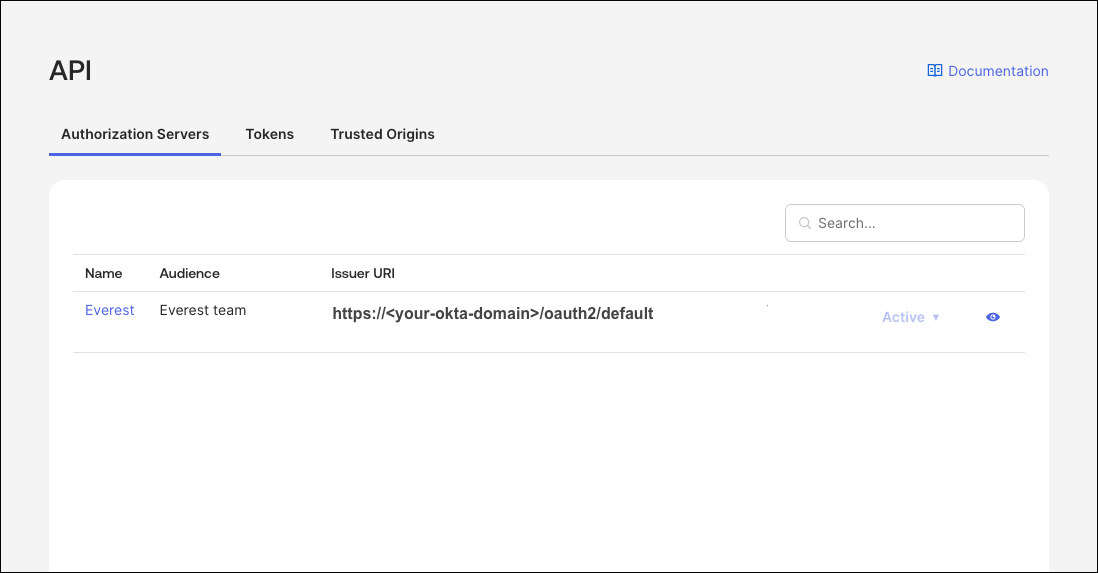 note
The values shown are for demonstration purposes only. Replace them with your actual Okta configuration.
Configure OpenEverest
OpenEverest needs the issuer URL of your IdP and the client ID of the application you created. Optionally, set the scopes to request; the default is openid, profile and email.
The configuration is stored in the everest-settings ConfigMap in the everest-system namespace. Use one of the following methods.
At installation, with Helm
helm install everest-core openeverest/openeverest \
  --devel \
  --namespace everest-system \
  --create-namespace \
  --set server.oidc.issuerUrl=https://example.okta.com \
  --set server.oidc.clientId=<client-id>
Helm writes everest-settings only on installation. To change the configuration later, use one of the other methods.
After installation, with kubectl
-
Edit the ConfigMap:
kubectl edit configmap everest-settings -n everest-systemdata:oidc.config: |issuerUrl: https://example.okta.comclientId: <client-id>scopes:- openid- profile- email -
Restart the server to apply the change:
kubectl rollout restart deployment/everest-server -n everest-system
After installation, with everestctl
everestctl settings oidc configure \
  --issuer-url=https://example.okta.com \
  --client-id=<client-id>
The command updates everest-settings and restarts the server for you. See Users for how to get everestctl for OpenEverest 2.
- Restarting the server affects only the OpenEverest UI and API. Instances keep running.
- The restart breaks existing
kubectl port-forwardsessions. Start them again.
Testing IdP integration
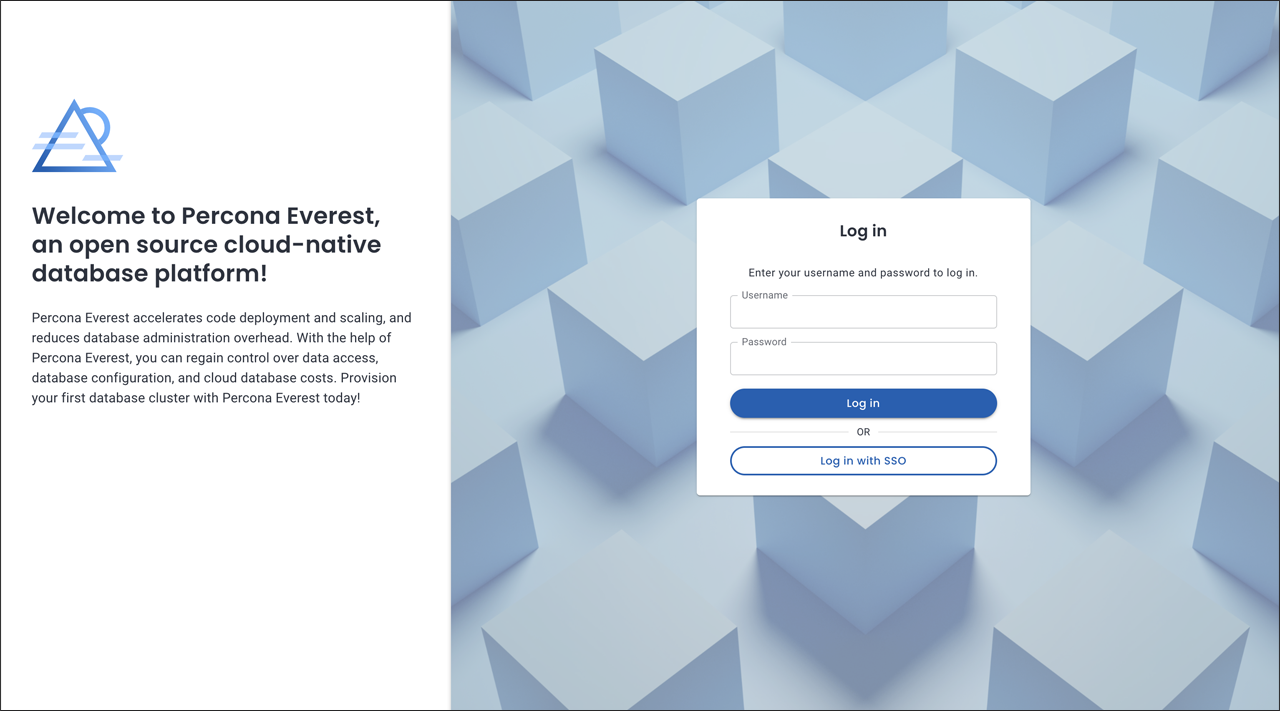
After setting up your OIDC configuration, you can verify the functionality by visiting the OpenEverest login page and attempting to log in using Single Sign-On (SSO).
OpenEverest OIDC configuration for Microsoft Entra
For Microsoft Entra, request the application's own scope so that the access token has the right audience:
everestctl settings oidc configure \
--issuer-url=http://url.com \
--client-id=<your-app-client-id> \
--scopes=openid,profile,email,<your-app-client-id>/.default
Replace <your-app-client-id> with your actual Microsoft Entra application (client) ID, and ensure the issuer-url points to the correct tenant.
With this configuration, the access token will include "aud": "<your-app-client-id>", and it will have a valid signature that OpenEverest can verify.
For a detailed explanation, see the OIDC integration limitations with Microsoft Entra.